Have you ever needed to leave your PC running for a download, file transfer, or software installation but wanted it to turn off automatically afterward? Windows has a built-in solution: the shutdown command timer.
For example, entering shutdown /s /t 3600 schedules your computer to shut down after one hour. You can adjust the timer to 30 minutes, two hours, four hours, or another duration that suits your task. If your plans change, you can also cancel the countdown before the shutdown takes place.
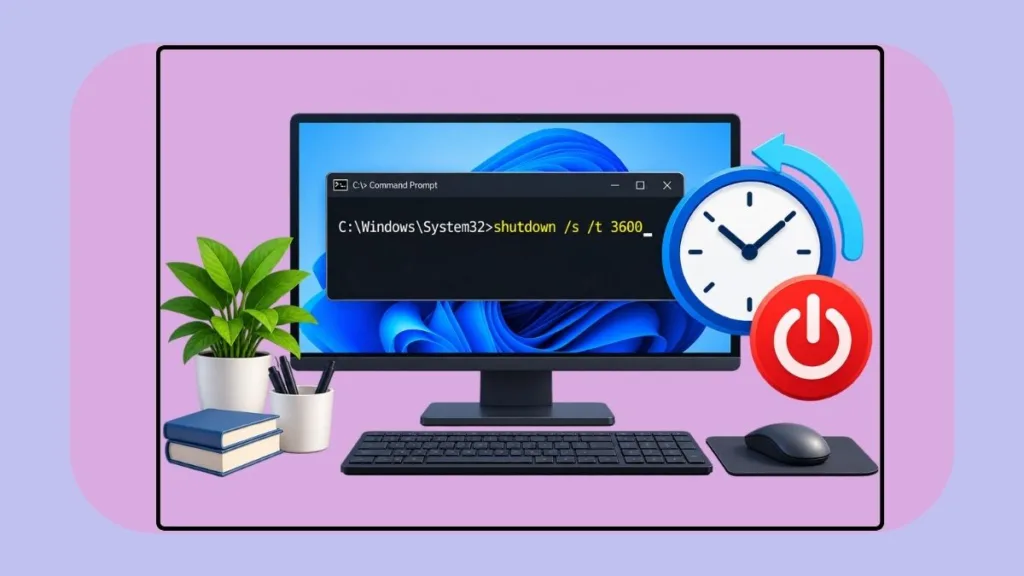
In this guide, we’ll show you how to set a Windows shutdown timer, choose the right duration, cancel a scheduled shutdown, and troubleshoot common problems in Windows 10 and Windows 11.
What Is the Windows Shutdown Command Timer?
The Windows shutdown command timer lets you schedule a computer to turn off after a specified delay. Instead of returning to your PC to shut it down manually, you can tell Windows when to begin the shutdown process.
This can be useful when a download is running, a file transfer is underway, or an installation is expected to finish while you are away. The important thing to remember is that Windows follows the timer you set; it does not check whether your task has actually finished.
You can use the built-in shutdown utility in both Windows 10 and Windows 11. There is no need to install a separate shutdown timer application for these basic tasks.
How to Set a Shutdown Timer Using CMD
Before choosing a duration, let’s look at the command itself. Once we understand its parameters, setting a different countdown is simply a matter of changing one number.
The Basic Windows Shutdown Command
Command to enter in CMD:
shutdown /s /t 3600How It Works
This command contains three parts:
shutdownlaunches the Windows shutdown utility./stells Windows to shut down the computer./t 3600sets the delay to 3,600 seconds, or one hour.
The number following /t represents the delay in seconds, not minutes. Replace 3600 with the number of seconds you need to schedule a different shutdown.
For example, 1800 represents 30 minutes, while 7200 represents two hours. We’ll use these values in the duration-specific examples below.
How to Apply It Using Command Prompt
Follow these steps to schedule a shutdown through Command Prompt.
- Press Windows + S to open Windows Search.
- Type Command Prompt.
- Open Command Prompt. For a normal shutdown of your own computer, you generally do not need to run it as an administrator.
- Enter the command for your preferred duration, such as
shutdown /s /t 3600. - Press Enter to start the countdown.
Windows should display a notification that the shutdown has been scheduled. Save your work and close any applications that you do not want to leave running.
Important caution: A shutdown timer does not guarantee that open applications will save their work or finish their tasks. Unsaved changes and ongoing operations may be interrupted when Windows shuts down.
How to Set a Shutdown Timer Using the Run Dialog
If you only need to run one command, the Run dialog can be quicker than opening Command Prompt. Both methods execute the same shutdown command, so you only need to choose one.
- Press Windows + R to open the Run dialog.
- Enter
shutdown /s /t 3600. - Press Enter or select OK.
Windows will schedule the same one-hour shutdown. Change the number after /t if you want a different delay.
Windows Shutdown Timer Commands for Different Durations
You do not need to work out the seconds every time you schedule a shutdown. The five examples below cover common durations, with a practical scenario for each.
1. Set a 30-Minute Shutdown Timer
Command to enter in CMD:
shutdown /s /t 1800This schedules your computer to shut down after 30 minutes.
When to use it: A short countdown may be suitable when you expect a file transfer to finish soon or you are wrapping up a brief task before stepping away.
Before using the command, consider whether the remaining work will fit within the half-hour window. If it takes longer than expected, you can cancel the pending shutdown and set a new timer.
2. Set a 1-Hour Shutdown Timer
Command to enter in CMD:
shutdown /s /t 3600This schedules a shutdown after one hour.
When to use it: Consider this duration for a software installation or another task with an estimated completion time of around an hour.
Installation times vary, so check the progress of the task rather than assuming it will finish before the countdown expires. If the installation is still running, cancel the timer before Windows begins shutting down.
3. Set a 2-Hour Shutdown Timer
Command to enter in CMD:
shutdown /s /t 7200This command schedules a shutdown after two hours.
When to use it: A two-hour window may be more appropriate for transferring a larger collection of files or processing a batch of media.
The command does not monitor the transfer or processing job. It simply starts a countdown, which means you should leave enough time for the task and account for possible delays.
4. Set a 3-Hour Shutdown Timer
Command to enter in CMD:
shutdown /s /t 10800This sets a three-hour shutdown countdown.
When to use it: You might choose this duration for an extended backup or a data-processing task that is expected to run for several hours.
If the task has its own completion notification or power-management option, consider using that feature when it is better suited to the job. A fixed shutdown timer cannot tell whether your backup has finished successfully.
5. Set a 4-Hour Shutdown Timer
Command to enter in CMD:
shutdown /s /t 14400This schedules your PC to shut down after four hours.
When to use it: A four-hour timer can suit a lengthy file transfer, a large backup, or another extended operation that does not require your attention throughout the process.
Before scheduling it, make sure the computer will not need your input and that an unexpected shutdown will not interrupt important work. A longer timer gives a task more time, but it does not guarantee completion.
Quick Reference: Windows Shutdown Timer Commands
Use this table when you want to copy a command without rereading the full instructions.
| Duration | Command |
|---|---|
| 30 minutes | shutdown /s /t 1800 |
| 1 hour | shutdown /s /t 3600 |
| 2 hours | shutdown /s /t 7200 |
| 3 hours | shutdown /s /t 10800 |
| 4 hours | shutdown /s /t 14400 |
Each command uses the same syntax. Only the number after /t changes.
How to Cancel a Scheduled Shutdown in Windows
Plans can change. Perhaps a download is taking longer than expected, or you realize you still need your PC. Windows includes an abort command that can cancel a pending shutdown before it takes place.
Use the Shutdown Abort Command
Command to enter in CMD:
shutdown /aThe /a parameter aborts a pending shutdown or restart when cancellation is still possible.
How to Apply It
- Open Command Prompt through Windows Search, or press Windows + R to open the Run dialog.
- Enter
shutdown /a. - Press Enter.
- Check the Windows notification to see whether the pending shutdown was aborted.
Run this command before the scheduled shutdown takes place. If Windows has already shut down, the command cannot reverse it. Cancellation may also fail if the shutdown process has progressed too far.
You can use the same abort command if you entered the wrong duration or no longer need the scheduled restart.
Bonus: Useful Windows Shutdown Commands
The shutdown utility can do more than schedule a standard shutdown. These additional commands cover restarting your computer, shutting it down immediately, displaying a shutdown notice, and using Task Scheduler for a future shutdown.
Schedule a Windows Restart
Command to enter in CMD:
shutdown /r /t 3600The /r parameter schedules a restart rather than a shutdown. With /t 3600, Windows schedules the restart after one hour.
This can be useful when you want to restart your PC later instead of turning it off completely. Save your work first, because a restart can interrupt open applications just like a shutdown.
To cancel the pending restart, enter:
shutdown /aShut Down Windows Immediately
Command to enter in CMD:
shutdown /s /t 0The zero-second delay requests an immediate shutdown rather than a delayed one. Use this command only when you are ready for Windows to turn off.
Save open files before running it. Avoid adding the /f parameter unless you specifically need forced application closure and understand the risk of losing unsaved data.
Display a Message Before a Scheduled Shutdown
If you want to include a brief explanation with a scheduled shutdown, you can use the /c parameter.
Command to enter in CMD:
shutdown /s /t 3600 /c "Your PC is scheduled to shut down in one hour. Save your work."The /c parameter supplies a comment associated with the shutdown. In this example, the timer is set to one hour, and the comment explains what is scheduled to happen.
Keep the message concise and relevant. The comment is not a separate reminder system, and it does not check whether you have saved your work. Windows displays its shutdown notification according to its normal behavior, so do not rely on the message as a guaranteed custom pop-up at a particular moment.
Schedule a Shutdown Using Task Scheduler
If you want Windows to run a shutdown command at a particular time or on a recurring schedule, Task Scheduler can launch the command for you.
- Search for Task Scheduler in Windows and open it.
- Select Create Basic Task and give the task a name, such as Scheduled PC Shutdown.
- Choose a trigger, such as a specific date and time or a recurring schedule.
- Select Start a program as the action.
- Enter
shutdown.exein the Program/script field. - In Add arguments (optional), enter
/s /t 0. - Review the settings and finish creating the task.
The trigger determines when Task Scheduler runs the command. Because the argument uses /t 0, the shutdown is requested immediately when the task executes. This differs from entering a one-hour countdown manually: Task Scheduler decides when the command starts, while /t determines the delay after it starts.
Important caution: Test the task and review its schedule carefully. Task permissions, execution settings, and whether the computer is available at the scheduled time can affect the result.
How to Troubleshoot a Windows Shutdown Timer
Most shutdown timer problems come down to command syntax, timing, or misunderstanding what the countdown actually does. These checks can help you narrow down the cause.
The Command Does Not Work
Check that you entered the command correctly, including the spaces and forward slashes:
shutdown /s /t 3600Make sure the number after /t is a valid delay in seconds. If Windows displays an error, read the message carefully and correct the command rather than repeatedly trying different versions.
The Shutdown Does Not Cancel
Enter:
shutdown /aYou must run it while the shutdown is still pending and cancellation is possible. If the computer has already shut down, there is no countdown left to abort.
Windows Shuts Down Before a Task Finishes
Remember that the timer does not check whether a download, backup, installation, or file transfer is complete. It follows the delay specified in the command.
If a task is taking longer than expected, run shutdown /a before the shutdown occurs. You can then schedule a new timer if necessary. When available, an application’s own completion or power-management feature may be more appropriate for tasks that must finish before the computer turns off.
The Computer Does Not Turn Off at the Expected Time
First, confirm that you used the correct command. The /s parameter schedules a shutdown, whereas /r schedules a restart. Also check that the timer value matches the duration you intended.
If Windows displays an error or warning during shutdown, use that message to guide your troubleshooting. Do not assume that the timer is broken simply because another application or system process affects the shutdown sequence.
Frequently Asked Questions About Windows Shutdown Timers
Can I set a shutdown timer in Windows 11 and Windows 10?
Yes. Both Windows 11 and Windows 10 support the built-in shutdown command. For example, shutdown /s /t 3600 schedules a shutdown after one hour.
How do I cancel a Windows shutdown timer?
Enter shutdown /a in Command Prompt or the Run dialog before the scheduled shutdown takes place. Cancellation works while the shutdown is still pending and can still be aborted.
Can I schedule a Windows restart instead of a shutdown?
Yes. Use shutdown /r /t 3600 to schedule a restart after one hour. Replace 3600 with the number of seconds you need.
What happens when the shutdown timer expires?
Windows begins the scheduled shutdown process. Open applications and running tasks may be interrupted, so save your work and make sure important operations are complete before the timer expires.
Can I schedule my PC to shut down at a specific time every day?
Yes. You can configure a recurring trigger in Task Scheduler and use shutdown.exe with /s /t 0 as the arguments. Review the task settings carefully so it does not interrupt your work.
Final Thoughts
The Windows shutdown command timer gives us a straightforward way to schedule a PC shutdown without installing extra software. Use shutdown /s /t followed by the delay in seconds, and remember that shutdown /a can cancel a pending shutdown when it is still possible to do so.
Before scheduling a shutdown, save your work and consider whether any important tasks might still be running. For more practical Windows command-line guidance, read our guide to 10 CMD Commands Every Windows User Should Know.
Check out our latest posts on the Blog Page!