Have you ever wanted to personalise your Android phone with a ringtone that actually feels like yours? Here’s how to make a song your ringtone on Android in 2027.
You hear a track in an Instagram Reel or a YouTube video, and you immediately want it to play when your phone rings. Then you find out that saving the audio or downloading the song for offline listening doesn’t give you a separate audio file you can edit or use as a ringtone.
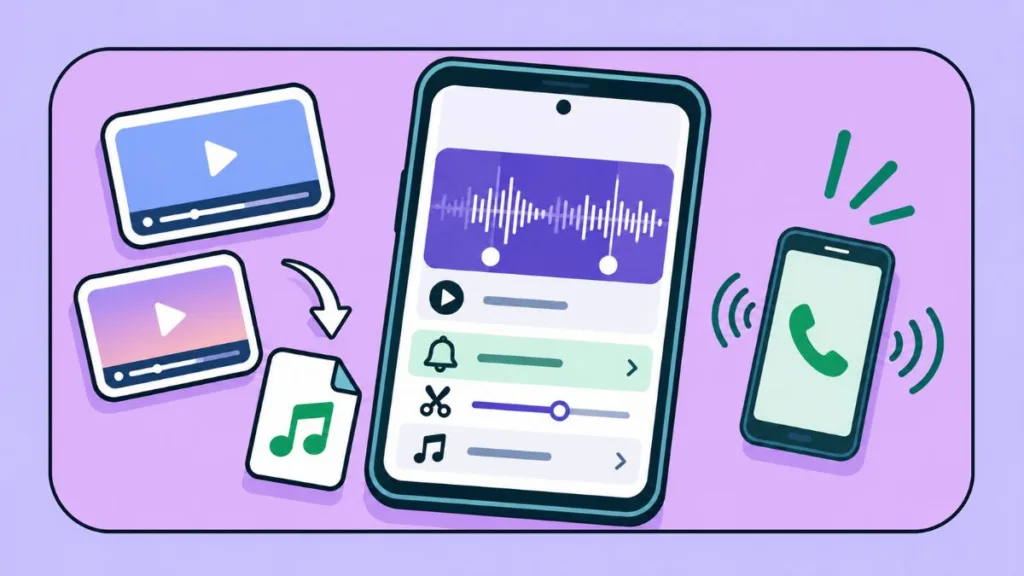
You don’t need a computer or professional software to fix that. You need an audio file you’re allowed to use, a simple MP3 cutter app, and a few minutes in your phone’s sound settings. We’ll cover identifying the song, getting the file (even when the sound only exists inside a Reel or Short), trimming it, and setting it as your ringtone on Samsung Galaxy, Google Pixel, and other Android phones.
Can You Use a Song From YouTube or Instagram as Your Android Ringtone?
Yes, but only if you have an actual audio file that you’re authorised to use. Having access to the song through a streaming service isn’t enough.
When you download music for offline listening in Spotify or YouTube Music, the audio stays inside that app. It doesn’t show up as an ordinary file in your Downloads folder. That matters for three reasons:
- A streaming service can give you offline playback without exposing a regular audio file.
- An audio editor can only trim a compatible file stored on your phone.
- Android’s ringtone picker can only offer files it can access and recognise.
So the goal throughout this guide is a locally stored audio file. We recommend MP3. It’s widely supported by Android phones and ringtone editing apps, and it keeps the file size manageable, which is useful when you’re creating a short ringtone.
How to Identify the Song You Heard Online
How to Identify a Song From a YouTube Video or Short
Start with what the creator has already shared:
- Check the description. Many creators list the song title, artist, or a link to the original track.
- Read the pinned comment. If other viewers have asked about the music, the answer is often there.
- Tap the sound name on a Short. The audio page can show the original track and other videos using the same sound.
If none of that helps, Shazam can listen to audio playing from another app on your phone. Setting it up takes a minute:
- Install and open the Shazam app.
- Open Shazam’s settings and turn on both Notification Bar and Pop-up Shazam.
- When Android asks, allow Shazam to appear over other apps. This permission is what lets the floating button show on top of YouTube.
- Open YouTube and play the video.
- Pull down your notification shade and tap Tap to Shazam, or tap Shazam’s floating button.
- Check your Shazam library for the song title and artist.
If the song has clear vocals, searching a few lyrics on Google can be even faster. And if Shazam finds nothing, jump to the section on what to do when a song only exists in a Reel or Short.
How to Identify a Song From an Instagram Reel
On a Reel, tap the audio name near the bottom of the screen. The audio page usually shows the title and artist.
Keep in mind that this label identifies the Reel’s audio source, not necessarily the song inside it. A creator may upload their own recording that happens to contain a commercial track, in which case you’ll only see “Original audio” or the uploader’s name. That’s exactly when Shazam is useful, because it listens to the music itself rather than relying on the label.
Also, Instagram’s Save Audio button doesn’t download an MP3. It only saves the sound for later use inside Instagram, so you won’t find it in your file manager or any ringtone editor. Once you know the song, you’ll need to get the file from another source. If Shazam can’t find it either, the section on songs that only exist in a Reel or Short covers your next options.
How to Download a Song for Your Android Ringtone
Where you get the file depends on who released the song and whether they allow downloads.
Can You Download YouTube Audio as MP3 for a Ringtone?
YouTube doesn’t provide a built-in option to export audio or MP3 files from its Android app. Even when you download a video for offline viewing, it stays encrypted and playable only inside the YouTube app, so it never becomes a regular audio file.
YouTube’s Terms of Service also restrict downloading and using content outside the methods the service authorises. A third-party converter doesn’t give you copyright permission or override those restrictions. For your own uploads, use YouTube’s authorised download options where available. For someone else’s content, make sure you have the necessary permissions and that your use complies with applicable law and YouTube’s terms.
If you do have the right to convert a video, we’ve covered the browser-based method, including how to use CnvMP3, in a separate guide: How to Download YouTube Videos as MP3: Best Way to Convert YouTube to MP3 Free.
Where to Download Music You’re Allowed to Edit
If you’d rather start with a legitimate download, these four platforms suit different situations.
Bandcamp: buy directly from independent artists. After purchasing a track, you can download it in several formats, including MP3, FLAC, AAC, and WAV.
- Open Bandcamp in your phone’s browser and find the song.
- Purchase it if payment is required.
- Open the download option linked to your purchase.
- Choose MP3 and save the file to your phone.
SoundCloud: tracks that creators have made downloadable. Only some artists enable this.
- Open the track page in your browser.
- Look for Download file beneath the waveform.
- If it’s there, select it and save the file.
If the option is missing, the creator hasn’t allowed downloads. Saving a track for offline listening in SoundCloud’s app doesn’t give you a separate audio file either.
Free Music Archive: a place to discover music and check licences. You can preview tracks and see which recordings are available under different licences, including Creative Commons.
Jamendo: independent music, often under Creative Commons licences. Whether a track can be downloaded depends on the artist’s settings and the licence attached to it, so check each track’s licence rather than assuming every Jamendo download can be edited freely.
Check the Music Licence Before You Edit a Track
You aren’t only downloading the song. You’re cutting it, and some licences restrict modifications or the sharing of modified versions. Creative Commons NoDerivatives licences, for example, restrict sharing modified material.
Don’t assume that a track labelled free or royalty-free gives you unrestricted editing rights, either. Check the specific licence conditions, and if you’re unsure, ask the rights holder for permission.
What If the Song Only Exists in a Reel or Short?
Some viral sounds never reach Spotify, Bandcamp, or any music store. It might be a sped-up edit, a remix, a clip of an unreleased track, or audio the creator recorded themselves. Shazam finds no match, and there’s no download link anywhere. Here’s what usually works, in the order we’d try it.
- Open the sound’s page. On Instagram, tap the audio name. On Shorts, tap the sound name. The page lists other videos using the same audio, and one of them may credit the original track or artist.
- Read the comments. When a sound is going viral, other viewers have usually asked about it already. Search the comments for “song” or “name” to find a reply.
- Search for the edited version. Many viral sounds are labelled “sped up,” “slowed,” “reverb,” or “remix.” Try the song title or a few lyrics together with those words on Google, YouTube Music, or SoundCloud.
- Ask the creator. Leave a comment or send a message asking for the song title. You can also ask whether they’re happy for you to use the audio. A reply from the creator also settles the permission question.
- Convert the Reel or Short to MP3. If the audio exists nowhere else, paste the video’s link into CnvMP3 in your phone’s browser, choose MP3, and download the file. It then lands in your Downloads folder like any other file, ready for the trimming steps below. Our YouTube to MP3 guide walks through the full CnvMP3 process.
Use step 5 only for videos you own or have permission to use. A converter makes the audio accessible, but it doesn’t give you any rights to it. Instagram and YouTube both restrict downloading outside their own features, and the music in someone else’s video still belongs to the creator or the artist. If you can’t get permission, a similar track from the platforms above is the safer route for your ringtone.
Where Android Saves Your Downloaded Audio Files
Files downloaded through your mobile browser usually land in the Downloads folder.
- Open Files by Google or your phone’s built-in file manager.
- Tap Downloads.
- Find the song and tap it to make sure it plays.
- Check that the extension is something like .mp3.
Can’t see it? Open Chrome’s three-dot menu and tap Downloads to find it in your recent downloads.
Keep the original file untouched. You’ll make a shorter copy for the ringtone, and having the full song lets you try a different section later without downloading it again.
How to Cut a Song to Make a Custom Ringtone
You probably don’t need the entire song playing when someone calls. Selecting the chorus or a recognisable instrumental section gives you a shorter ringtone without the parts you don’t want to hear. For that, you only need basic trimming controls, a waveform view, and a preview option.
A Useful MP3 Cutter App for Android
One option worth considering is MP3 Cutter & Ringtone Cutter by InShot Inc. It’s available to download from Google Play and provides the basic trimming features needed for a custom ringtone. The app also includes advertisements and optional in-app purchases, so check the current Play listing before installing.
Its waveform editor shows the audio visually, so you can see where a chorus begins instead of guessing. Other useful features include:
- Start and end markers for choosing the section you want.
- Waveform zooming for more precise cuts.
- Preview so you can listen before saving.
- Fade-in and fade-out effects so the clip starts and ends smoothly.
- Export and ringtone options for saving the clip or setting it as a ringtone, alarm, or notification sound.
How to Trim a Song Using MP3 Cutter & Ringtone Cutter
Menu names may differ slightly between app versions.
- Open the audio cutter. Launch the app and choose Audio Cutter or the equivalent trimming option.
- Select your song. You’ll see the audio files the app can access. Open your Downloads or music folder and pick the song. If Android asks for audio or file access, allow it.
- Choose your section. Drag the start marker to where your favourite part begins, then set the end marker. If you want the chorus, move the start marker straight to it instead of keeping the whole introduction. Zoom in on the waveform for a cleaner edge.
- Preview the full clip. Play the entire selection, not just the area around the markers. Check that it starts exactly where you intended and ends without cutting off a word or note. A selection that looks right on the waveform can still sound abrupt.
- Add a fade if needed. If the clip starts or ends suddenly, apply a short fade-in or fade-out, then preview again to make sure the ringtone doesn’t become too quiet.
- Save as MP3. Tap Save or Export, choose MP3 if asked, and name the file something you’ll recognise, such as My-Favourite-Ringtone.mp3.
About 20 to 30 seconds is a practical starting length, but it’s only a suggestion, not an Android requirement. A section that sounds complete matters more than hitting an exact number.
How to Set Your Custom Song as an Android Ringtone
How to Set a Ringtone Using Files by Google
This is one of the simplest methods because you can select the edited audio directly from your phone’s storage.
- Open Files by Google.
- Scroll to Categories and tap Audio.
- Find your edited song and tap it to confirm it’s the right one.
- Tap the three-dot More menu beside the file.
- Select Set as ringtone.
- If prompted, tap Continue and turn on Allow modify system settings for Files by Google.
- Go back and follow any final confirmation.
You should see a message confirming the ringtone has been set. If you don’t see the option, make sure you’re using Files by Google rather than another file manager, and that the audio file is saved on your phone.
How to Set a Custom Ringtone in Android Settings, Including Google Pixel
Menu names vary by manufacturer, but the route is usually similar:
- Open Settings.
- Tap Sound & vibration.
- Select Phone ringtone or Ringtone.
- Look for My Sounds, Add ringtone, or a plus (+) icon.
- Browse to your edited MP3 and select it.
- Preview it if you can, then tap Save or Apply.
On a Google Pixel, the path to the ringtone settings is the same, but the option for choosing your own file can look different depending on your Pixel model and software version. If your clip doesn’t appear in the picker, use Files by Google to copy the MP3 into your phone’s internal Ringtones folder, then reopen the ringtone settings. Setting it directly through Files by Google also works.
How to Set a Custom Ringtone on Samsung Galaxy
Samsung’s ringtone picker works a little differently, and it lets you choose a ringtone for each SIM.
- Open Settings and tap Sounds and vibration.
- Select Ringtone.
- If you use two SIMs, choose the SIM you want to change.
- Tap the plus (+) icon near the top.
- Browse your phone’s audio files and select your edited song.
- Tap Done.
Supported formats can vary by Galaxy model and region, so MP3 is the safest choice. If your song doesn’t show up, make sure it’s stored on your phone rather than inside a streaming app, because Samsung doesn’t let you pick streaming-service tracks directly as ringtones. You can also use Samsung’s My Files app to copy it into the Ringtones folder in internal storage, then reopen the picker.
FAQ: Custom Android Ringtone
Why Doesn’t My Custom Ringtone Appear in Android’s Ringtone Settings?
If you’ve followed every step and the file still isn’t listed, one of these is usually the reason:
- The audio isn’t stored locally on your phone.
- The file is in a format your phone doesn’t recognise.
- The editor didn’t finish exporting the file.
- The ringtone picker hasn’t detected the new file yet.
Try moving the MP3 into your phone’s internal Ringtones folder, then reopen the ringtone picker. If it still doesn’t appear, check that the file plays correctly in your file manager, and re-export it as MP3 if necessary. Setting it through Files by Google is another reliable workaround.
Can I Use a WAV or M4A File as an Android Ringtone?
Possibly, but it depends on your phone. Many devices support WAV and AAC audio, yet compatibility varies by manufacturer and software version. M4A is a container that commonly holds AAC audio, and support for it is less consistent. If the file doesn’t appear in your ringtone settings, re-export it as MP3.
Can I Use a Voice Recording as My Android Ringtone?
Yes. Save the recording in a format your phone supports, trim it in an audio editor if you like, and select it through your ringtone settings.
Will My Custom Ringtone Work Without an Internet Connection?
Yes. Once the audio file is saved on your phone, it plays without Wi-Fi or mobile data.
Will My Ringtone Stop Working If I Uninstall the Ringtone Maker App?
Normally, no. Your custom ringtone should keep working after you uninstall the app, as long as the exported MP3 is saved in a regular storage location such as Downloads or Ringtones rather than an app-specific folder. Files stored in an app’s private folder are removed when the app is uninstalled. Either way, don’t delete the ringtone file itself, because Android needs it to play your custom sound.
Can I Set Different Ringtones for Two SIM Cards?
On many dual-SIM phones, yes. Go to Settings > Sound & vibration > Phone ringtone, pick the SIM you want to change, and choose its sound. Availability depends on your phone model and Android version.
How Do I Transfer My Custom Ringtone to Another Android Phone?
Send the audio file using Quick Share, Bluetooth, a USB cable, or cloud storage. On the new phone, find the file, copy it into the Ringtones folder if needed, and select it again in the ringtone settings, since transferring the file doesn’t apply it automatically. The new phone also needs to recognise the audio format, so MP3 is the safest choice here too.
How Do I Restore My Original Android Ringtone?
Open Settings > Sound & vibration > Phone ringtone, pick one of the built-in sounds, and apply it. Your custom file stays on your phone, so you can switch back whenever you like.
It All Comes Down to a Locally Stored Audio File
Everything in this process depends on one thing: a locally stored audio file that you’re allowed to edit. Once you have a real MP3, the rest is simple. Trim the section you want, listen to the whole clip before saving, and select it through Files by Google or your phone’s ringtone settings. Hold on to the original song, too, so you can build a different ringtone from it whenever you feel like a change.
Check out our latest posts on the Blog Page!