Want to know how to make a PowerPoint presentation with AI for free? Learn how AI tools can help you create professional PPT slides quickly without starting from scratch.
Creating a PowerPoint presentation from scratch can be time-consuming. You have to plan the content, write each slide, find suitable images, and then spend even more time fixing the layout.
Thankfully, AI presentation tools can now handle much of this work for you.
From creating a complete slide deck from a simple prompt to generating layouts and adding visuals, AI can help you create a presentation in just a few minutes. The best part is that several AI presentation tools offer free options.
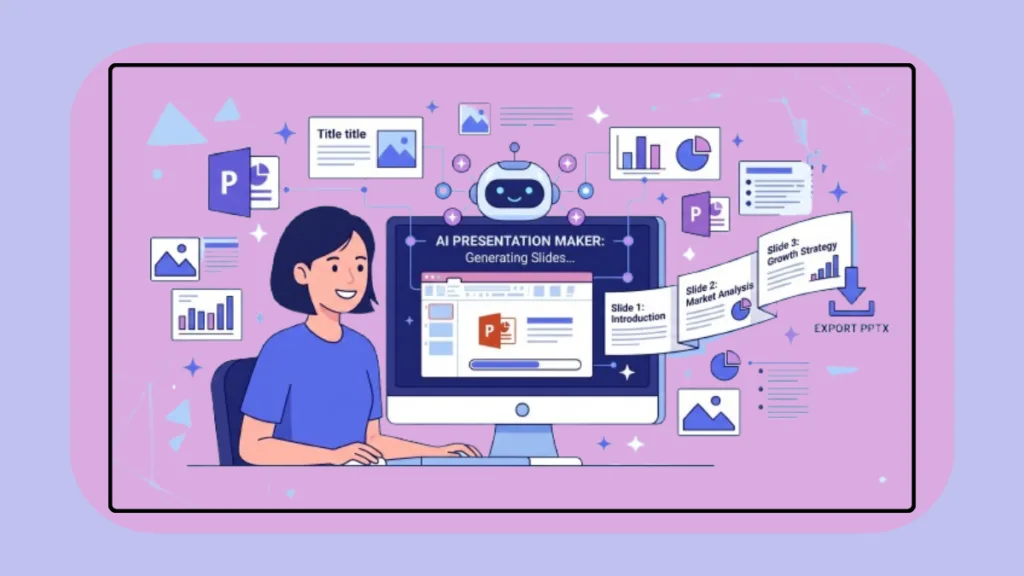
In this guide, we’ll look at 3 of the best AI tools that can help you create a PowerPoint presentation for free: Gamma, Canva, and Slidesgo. I’ll also show you how to use each tool and turn the AI-generated presentation into a deck you can edit and present.
Can You Make a PowerPoint Presentation With AI for Free?
Yes, you can create a PowerPoint presentation with AI for free.
AI presentation makers can generate the initial structure, slide content, layouts, and visuals from a simple description.
However, there is one important thing to remember: free does not always mean unlimited.
Some AI presentation tools put limits on things such as AI credits, the number of presentations you can create, premium templates, or branding.
For example, Gamma currently offers a Free plan with 400 credits at signup, allows you to create up to 10 slides per prompt, and supports export to PPTX, PDF, PNG, and Google Slides. Gamma’s free plan is intended for simple projects and does not require a credit card.
Canva also provides AI-powered presentation features through Magic Design, and presentations can be downloaded as PPTX files. Canva’s official presentation workflow lets you start from a template or generate slides with AI, customize them, and then download the finished presentation in PowerPoint format.
Slidesgo currently allows 3 AI-generated presentations per month on its free plan. It also provides editable PPTX downloads, while free users need to keep Slidesgo attribution on the presentation.
So, without further ado, let’s see how to make a PowerPoint presentation with AI for free.
What Are the Best AI Tools to Make a PowerPoint Presentation for Free?
There are several AI presentation makers available today, but these 3 tools are a good starting point if you want to create slides quickly and still edit the result yourself.
We selected Gamma, Canva, and Slidesgo because they can generate presentations from prompts and give you ways to continue editing the result.
Now, let’s take a closer look at each one.
1. How to Make a PowerPoint Presentation With Gamma
Gamma is one of the easiest ways to create an AI-generated presentation.
You can start with a topic, prompt, outline, or document, and Gamma can turn it into a structured presentation with text, layouts, and visuals.
Gamma’s current Free plan supports PPTX export and lets you create up to 10 slides per prompt.
Steps to Create a PowerPoint With Gamma
- Open the Gamma website and create a free account or sign in.
- Start creating a new presentation with AI.
- Enter the topic or prompt for your presentation.
- Describe the type of presentation you want, including the audience and purpose.
- Let Gamma generate the initial presentation.
- Review the generated slides, text, images, and layouts.
- Edit the content and remove anything you do not need.
- Make any final design changes.
- Open the Export menu and choose PowerPoint (PPTX).
- Download the presentation and open it in Microsoft PowerPoint for further editing.
Gamma’s current free plan includes 400 credits at signup, allows up to 10 slides per prompt, and supports importing PDF and PPTX files as well as exporting presentations to PDF, PPTX, PNG, and Google Slides.
Why Is Gamma Useful?
Gamma is useful when you want AI to handle most of the initial presentation structure and design.
Instead of creating every slide manually, you can give Gamma an idea and use the generated presentation as a starting point.
It is especially useful when you need a quick first draft and plan to polish the presentation later.
One thing to keep in mind is that a Gamma presentation can require some formatting adjustments after being exported to PowerPoint because Gamma’s layout system is different from traditional PowerPoint slides.
Also, although PPTX export is available on Gamma’s Free plan, the current Free plan is designed for simple projects and free exports may include Gamma branding. The paid Plus plan specifically lists removal of Gamma branding as an upgrade.
2. How to Make a PowerPoint Presentation With Canva AI
Canva is another popular option for creating presentations with AI.
Its Magic Design for Presentations can help generate a presentation from an idea or prompt. After that, you can customize the slides and download the presentation as PPTX.
Steps to Create a PowerPoint With Canva AI
- Open Canva and sign in to your account.
- Click Canva AI from the homepage.
- Choose Design for me and select Presentation.
- Enter a detailed prompt describing your presentation.
- Let Canva generate presentation designs based on your prompt.
- Select the presentation design you like.
- Edit the text, images, colors, fonts, and layouts.
- Add your own images or graphics when necessary.
- Review all the slides before exporting.
- Download the presentation as a PowerPoint (PPTX) file.
Canva’s current presentation workflow supports both AI-generated slides and traditional templates. Its official documentation also confirms that presentations can be downloaded as PNG, JPEG, PDF, or PPTX.
Canva lists Magic Design and Magic Write among its AI-powered features with free availability, although other Magic Studio features can be limited to Pro users.
Why Is Canva Useful?
Canva is particularly useful if you want more control over the look and feel of your presentation.
After the AI generates the initial deck, you can manually change the templates, fonts, colors, images, graphics, and layouts. This makes Canva a good choice when presentation design matters as much as the AI generation itself.
It is also useful when you want to start with AI but still want a large amount of manual customization before downloading the PowerPoint file.
Canva’s presentation editor also provides a large collection of templates and design elements, making it easier to continue working on the presentation after AI has created the first draft.
3. How to Make a PowerPoint Presentation With Slidesgo AI
Slidesgo is another presentation-focused AI tool that can turn a topic into a complete slide deck.
It is particularly relevant for PowerPoint users because its AI-generated presentations can be downloaded in editable PPTX format.
Steps to Create a PowerPoint With Slidesgo AI
- Open the Slidesgo AI Presentation Maker.
- Sign in or create an account.
- Enter your presentation topic.
- Describe what you want the presentation to cover.
- Let Slidesgo generate the slides.
- Review the generated content and design.
- Customize the text, colors, layouts, and other elements.
- Select a suitable presentation style.
- Click the Download option.
- Download the presentation as an editable PPTX file.
- Open the file in Microsoft PowerPoint and make any final changes.
Slidesgo currently offers 3 AI-generated presentations per month on its free plan.
Its AI Presentation Maker can create presentations from text, lets you customize the generated content, and provides an editable PPTX download compatible with PowerPoint, Google Slides, and Figma.
Slidesgo’s Free plan also includes 3 template downloads per month and access to a selection of basic presentation templates. Free users need to keep the slide containing Slidesgo credits as attribution.
Why Is Slidesgo Useful?
Slidesgo is useful if your main goal is to create PowerPoint-ready slides quickly.
Instead of generating a presentation and then figuring out how to convert it into PowerPoint, you can download the generated deck as a PPTX file and continue editing it in PowerPoint or another compatible tool.
Slidesgo specifically states that its AI-generated presentations are fully editable and compatible with PowerPoint and Google Slides.
It is also useful for teachers, students, freelancers, and business users who need a presentation quickly without designing every slide from scratch.
What Prompt Should You Use to Create a PowerPoint With AI?
The quality of an AI-generated presentation depends heavily on the prompt you give it.
A vague prompt may produce generic slides, while a detailed prompt can give the AI more useful direction.
You can use a prompt like this:
Create a 10-slide PowerPoint presentation about [TOPIC] for [AUDIENCE]. Include a title slide, introduction, key points, examples, important statistics, conclusion, and final summary. Keep the text concise and use a clean, professional design with relevant visuals.
You can replace [TOPIC] and [AUDIENCE] with your own information.
For better results, mention:
- Number of slides
- Presentation topic
- Target audience
- Purpose of the presentation
- Tone or writing style
- Important points to include
- Visual style
The more specific your prompt is, the easier it is for the AI tool to create a presentation that matches what you actually need.
Slidesgo also recommends being clear about the topic, audience, and tone, noting that thoughtful details help the AI shape the presentation to your goals.
You can also tell the AI what you do not want.
For example, you can ask it to avoid long paragraphs, keep each slide focused on one idea, or use a minimalist design.
How to Make AI-Generated PowerPoint Slides Better
AI can create the first version of your presentation, but you should not simply download it and present it without checking the slides.
Check the AI-Generated Information
AI can sometimes generate incorrect or outdated information, so check important facts, figures, dates, and statistics before using them in your presentation.
This is especially important when your presentation contains research, financial information, technical claims, or statistics.
Even Microsoft’s own documentation says that AI-generated presentation content should be human-reviewed and edited.
Remove Unnecessary Text
A presentation should not look like a document.
Remove unnecessary paragraphs and keep the most important information on each slide.
Replace Poor Images
Check the images generated or selected by the AI.
Replace visuals that do not match the topic or do not add anything useful to the slide.
Fix the Layout
Look for slides with too much text, uneven spacing, tiny fonts, or crowded designs.
Make small adjustments before presenting.
Keep the Design Consistent
Try to use consistent fonts, colors, spacing, and visual styles throughout the presentation.
This will make the deck look more professional.
Add Your Own Information
AI should help you create the presentation faster, but your own examples, insights, screenshots, data, or experience can make the presentation much more useful and original.
Gamma vs Canva vs Slidesgo: Which One Should You Use?
All three tools can help you create a PowerPoint presentation with AI, but each one has a different strength.
| Feature | Gamma | Canva | Slidesgo |
|---|---|---|---|
| AI presentation generation | ✅ | ✅ | ✅ |
| Free option | ✅ | ✅ | ✅ |
| PPTX export | ✅ | ✅ | ✅ |
| Design customization | Good | Excellent | Good |
| Templates | Good | Excellent | Excellent |
| Best for | Fast AI generation | Design & customization | PowerPoint-ready slides |
Which Tool Is Best?
Gamma: Best when you want AI to create most of the presentation quickly.
Canva: Best when you want more control over templates, graphics, and visual design.
Slidesgo: Best when you want a PowerPoint-focused workflow and an editable PPTX file.
For the current free plans, there is also a practical difference.
Gamma’s Free plan provides 400 signup credits and PPTX export, Canva offers AI presentation creation and PPTX downloads, while Slidesgo’s Free plan provides 3 AI-generated presentations each month with editable PPTX output but requires attribution.
Final Thoughts
Making a PowerPoint presentation with AI for free is much easier than creating every slide manually.
Tools like Gamma, Canva, and Slidesgo can generate a starting presentation from a simple prompt and help you save a significant amount of time.
Gamma is a great choice for quickly generating a complete presentation, while Canva is better suited to users who want more design and customization options. Slidesgo is a strong choice when you want an AI-generated deck that can be downloaded as an editable PowerPoint file.
However, AI should be treated as a starting point rather than the final step.
Always review the information, improve the design, and add your own ideas before presenting the finished slides.
Microsoft also takes this same approach with its own AI presentation workflow: Copilot can generate an outline and slides from a prompt, but Microsoft recommends that users review and edit AI-generated content.
So, whether you need a school presentation, business presentation, project deck, or quick slideshow, AI can help you get from a blank PowerPoint file to a useful first draft much faster.
Check out our latest posts on the Blog Page!