PowerShell command for computer name explained. Learn how to get PC name in Windows using simple local and remote PowerShell commands—fast, easy, and beginner-friendly.
You usually don’t think about your PC name—until the moment you actually need it. Maybe you’re troubleshooting a Windows issue, setting up a local network, managing devices at work, or writing a PowerShell script that needs system details. Instead of clicking through system settings, you can use a simple PowerShell command for computer name and get the answer instantly.
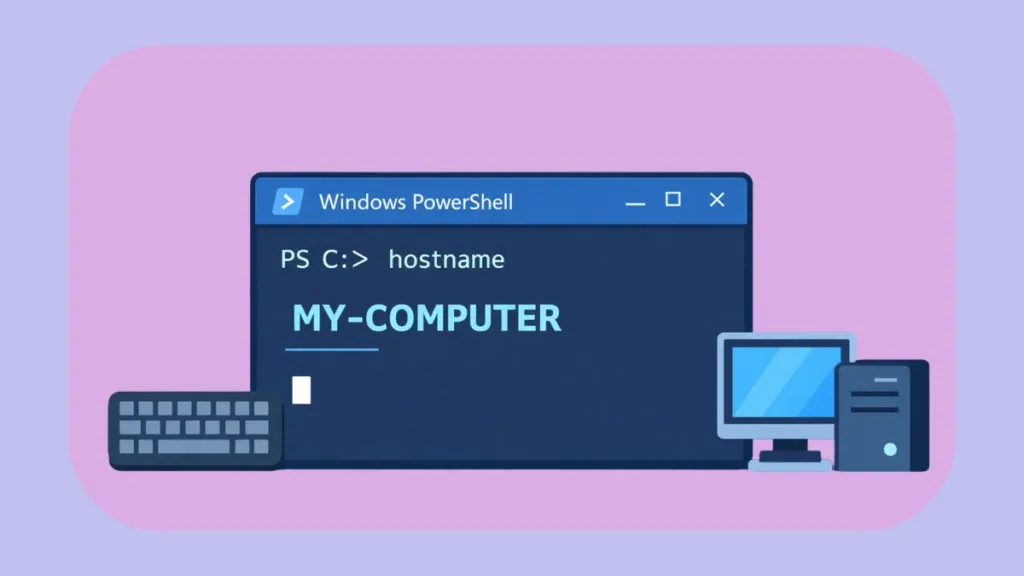
In this guide, you will learn how to get computer name using PowerShell with multiple approaches. We wi0ll start with the fastest one-liner, then move into more advanced options useful for scripting, automation, and remote computers. You will also learn when to use each method, what to avoid, and how these commands fit into real-world use cases.
PowerShell Commands for Computer Name: Quickly Identify Your PC
If you want the quickest possible answer, this is the command most people use:
hostname
This is the most common and beginner-friendly PowerShell command to get computer name.
You can also use these alternatives:
$env:COMPUTERNAME
[System.Net.Dns]::GetHostName()
Each of these commands returns your local computer name as plain text. They work in both Windows PowerShell and PowerShell 7, and you do not need administrator access to run any of them.
Why Use PowerShell to Get Computer Name on Windows
PowerShell gives you a faster and cleaner way to access system information compared to digging through Windows settings or Control Panel.
When you use PowerShell to find computer name, you can:
- Check your PC name in seconds without opening system menus
- Insert the computer name directly into scripts, logs, or automation tasks
- Get the computer name without admin rights
- Work with both local and networked computers
- Avoid installing extra tools just for basic system info
If you work with Windows often—whether casually or professionally—this is one of those small skills that saves time repeatedly.
Best PowerShell Commands to Get Computer Name Using 6 Methods
Below are the most reliable and commonly used PowerShell commands for computer name, explained from the simplest option to more advanced techniques.
Method 1 – PowerShell Hostname Command for Computer Name
hostname
Why the hostname PowerShell command is so popular
The hostname command has been around since the early days of Windows, and it still works perfectly inside PowerShell.
- You run it once and get the result instantly
- You don’t need to worry about permissions or admin access
- You can use the same command in PowerShell and Command Prompt
When to use the hostname command
- You just need to check the PC name quickly
- You want the fastest and simplest option
- You’re new to PowerShell
Extra tip for everyday use
If you want to save the computer name for later, you can redirect the output to a file:
hostname > pcname.txt
This is useful when documenting systems or sharing details with others.
Method 2 – Get Computer Name Using PowerShell Environment Variable
$env:COMPUTERNAME
Alternative PowerShell computer name command
[Environment]::MachineName
Why environment variables work well in PowerShell
Windows stores many system details as environment variables, and your computer name is one of them. PowerShell can read these values directly.
- It’s lightweight and extremely fast
- It works perfectly inside scripts and automation workflows
- It does not rely on DNS, networking, or internet access
When to use environment variable method
- You’re writing scripts that run on multiple machines
- You want to log or display the computer name automatically
- You’re automating routine tasks or reports
Simple script example
Write-Output "This script is running on $env:COMPUTERNAME"
This pattern is very common in real-world PowerShell scripts.
Method 3 – PowerShell .NET DNS Command to Get Computer Name
[System.Net.Dns]::GetHostName()
Optional variation:
[System.Net.Dns]::GetHostByName('').HostName
How the DNS PowerShell command gets computer name
These commands use .NET’s DNS class to retrieve the hostname from the system.
- Useful when you’re already working with networking or DNS logic
- Fully supported in modern PowerShell versions
Things to keep in mind with DNS method
Because this approach relies on DNS, results can depend on how the network is configured. If you’re offline or working in a restricted environment, this method may behave differently. In those cases, hostname or $env:COMPUTERNAME are safer choices.
Method 4 – PowerShell WMI or CIM Command to Get Computer Name
(Get-CimInstance Win32_ComputerSystem).Name
Why WMI or CIM PowerShell command is useful
CIM lets you query detailed Windows system information, not just the computer name.
- Works on local PCs and remote machines
- Returns structured data you can expand later
- Useful for inventory and system management
Example with extra system details
Get-CimInstance Win32_ComputerSystem | Select-Object Name, Manufacturer, Model
When to use WMI or CIM method
- You’re managing multiple computers
- You need more system details, not just the name
- You’re doing administrative or inventory work
This method is slightly slower than simple commands, but far more flexible.
Method 5 – Get Remote Computer Name Using PowerShell Remoting
Invoke-Command -ComputerName 192.168.1.2 -ScriptBlock { hostname }
With credentials:
$cred = Get-Credential
Invoke-Command -ComputerName 192.168.1.2 -ScriptBlock { hostname } -Credential $cred
Why PowerShell remoting helps find computer name
PowerShell Remoting allows you to run commands on another computer as if you were sitting in front of it.
- Ideal when you manage multiple systems
- Perfect for automation across a network
- Supports secure authentication
Example for checking multiple computers
$computers = @("PC1","PC2","PC3")
Invoke-Command -ComputerName $computers -ScriptBlock { hostname }
This approach is especially useful in IT and admin environments.
Method 6 – PowerShell Registry Command to Get Computer Name
(Get-ItemProperty "HKLM:\SYSTEM\CurrentControlSet\Control\ComputerName\ComputerName").ComputerName
When to use registry PowerShell method
- Other commands aren’t returning results
- You’re troubleshooting deeper system issues
- You need a reliable fallback method
This reads the computer name directly from the Windows Registry.
PowerShell Computer Name Commands Comparison Table
| Method | Local PC | Remote PC | Speed | Admin Rights |
|---|---|---|---|---|
| hostname | Yes | No | Very Fast | No |
| $env:COMPUTERNAME | Yes | No | Very Fast | No |
| DNS Method | Yes | No | Fast | No |
| CIM / WMI | Yes | Yes | Medium | Sometimes |
| PowerShell Remoting | No | Yes | Medium | Sometimes |
| Registry | Yes | No | Medium | No |
Common PowerShell Error When Getting Computer Name
Access denied error in PowerShell
If you see permission issues—especially with CIM or remote commands—try running PowerShell as Administrator.
DNS PowerShell command not working
If DNS-based methods fail, switch to hostname or $env:COMPUTERNAME.
Remote computer not responding in PowerShell
Make sure PowerShell Remoting is enabled: Enable-PSRemoting -Force
Best Practices for Using PowerShell Commands
While PowerShell commands make it easy to get computer name and system details, following a few best practices will help you work more efficiently and avoid common mistakes:
- Use the simplest command possible – For local checks, start with
hostnameor$env:COMPUTERNAMEbefore trying advanced methods. - Prefer environment variables in scripts – They are lightweight, reliable, and ideal for automation.
- Test remote commands on one PC first – Before running commands in bulk, confirm they work on a single machine.
- Avoid hardcoding credentials – Use secure credential prompts or credential managers instead.
These small habits can make your PowerShell workflow cleaner, safer, and more reliable.
FAQ: PowerShell Command for Computer Name
What is the fastest PowerShell command for computer name
hostname
Can you get computer name using PowerShell without admin rights
Yes. Both hostname and $env:COMPUTERNAME work without admin privileges.
How do you get remote computer name using PowerShell
You can use CIM commands or PowerShell Remoting.
Is hostname and computer name the same
On most Windows systems, they refer to the same value.
Final Thoughts: Master PowerShell Commands to Find Your Computer Name
By learning the best PowerShell commands for computer name, you can quickly identify your PC, write cleaner scripts, and manage Windows systems more efficiently—without extra tools.
For a quick check, hostname works instantly. For scripting and automation, $env:COMPUTERNAME is usually the better option. And when you’re managing multiple machines, CIM and PowerShell Remoting give you the flexibility you need.If you want to go further, check out our in-depth guide on PowerShell troubleshooting and diagnostic.
Once you’re comfortable with these PowerShell commands to get computer name, checking a system’s identity becomes fast, reliable, and effortless.
Check out our latest posts on the Blog Page!