
Learn how to find saved Wi-Fi password using CMD in Windows 11. This step-by-step guide covers how to reveal keys with or without Administrator access.
We’ve all faced this situation: your Windows 11 PC is already connected to Wi-Fi, everything works perfectly, but the moment you need the password—to connect your phone, share it with a guest, set up a smart TV, or troubleshoot a router—you realize you don’t remember it.
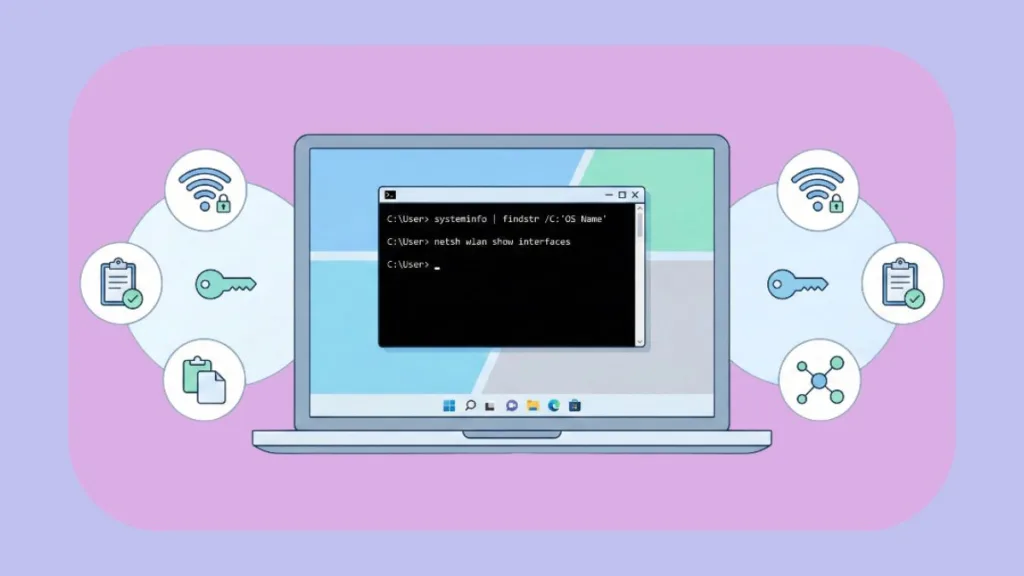
Most users try digging through Windows Settings or searching the router sticker, and many even install third-party tools. What few people realize is that Windows Command Prompt (CMD) already has everything needed to view saved Wi-Fi passwords—quickly and safely.
Just like CMD can optimize gaming performance or fix system issues, it can also help you retrieve Wi-Fi passwords stored on your system. In this guide, you’ll learn how to know your Wi-Fi password using Command Prompt in Windows 11, why it works, when it might not, and how to fix common errors.
Important: This method works only for Wi-Fi networks your Windows 11 device has connected to before.
What Is Command Prompt and Why Use It to Find Wi-Fi Passwords?
Command Prompt (CMD) is a built-in Windows tool that allows you to interact directly with system-level features using text-based commands. While many users associate CMD with advanced troubleshooting, Windows actually uses it behind the scenes for networking, power management, and system diagnostics.
Why CMD Is Useful for Viewing Wi-Fi Passwords
Many users rely on third-party Wi-Fi password viewers, but CMD already provides a safer alternative. Using Command Prompt to find Wi-Fi passwords allows you to:
- View saved Wi-Fi passwords without installing extra software
- Access network details stored locally on your PC
- Avoid risky or ad-filled third-party apps
- Troubleshoot connectivity issues more effectively
By using built-in CMD networking commands, you can quickly retrieve Wi-Fi credentials that Windows has already saved.
Can You See Wi-Fi Password Using CMD in Windows 11 Without Administrator Rights?
Yes, in many real-world cases, you can.
When your Windows 11 system connects to a Wi-Fi network, Windows saves a wireless profile that includes security and configuration details. Command Prompt can read this profile and, in many cases, display the password in plain text.
However, there are some important limitations to understand. While the commands can be executed without administrator access, recent Windows 11 security updates may mask the actual password unless CMD is run as administrator. In such cases, you may see the password status listed as “Present” instead of the actual value.
Other restrictions include enterprise Wi-Fi networks, certificate-based authentication, or system policies applied by organizations.
Expectation check: CMD works without admin on many personal systems, but administrator access may be required to reveal the actual password on some setups.
Three Simple Steps to Find Wi-Fi Password Using CMD in Windows 11
Finding your Wi-Fi password using Command Prompt doesn’t require technical expertise. If you can follow simple steps and copy commands, you can retrieve your password in under a minute.
Step 1 – Open Command Prompt in Windows 11 (Normal Mode)
Click the Start menu, type Command Prompt, and select Open.
Do not choose Run as administrator initially. Many Windows 11 systems allow password viewing in normal mode, which is useful if you’re on a restricted account.
Opening CMD normally also helps you determine whether admin rights are truly required on your system.
Tip: If the password doesn’t appear later, you can reopen Command Prompt as administrator.
Step 2 – List All Saved Wi-Fi Networks in Windows 11
In the Command Prompt window, type the following command and press Enter:
netsh wlan show profiles
This command displays all Wi-Fi networks previously connected to your Windows 11 PC. These profiles are stored locally and remain available unless manually removed.
Carefully locate the exact Wi-Fi name (SSID) for the network whose password you want to view.
Pro Tip: Highlight the Wi-Fi name with your mouse and press Enter to copy it. In the next step, simply right-click to paste—this prevents spelling or case-sensitivity mistakes.
Step 3 – Show Wi-Fi Password Using CMD in Windows 11
Now replace WIFI_NAME with your network name and run the following command:
netsh wlan show profile name="WIFI_NAME" key=clear
Scroll through the output and locate Key Content. The value next to it is your Wi-Fi password.
Important: If your Wi-Fi name contains spaces (for example, “Arpit’s Home WiFi”), the quotation marks are mandatory. If it has no spaces, quotation marks are optional but still recommended.
Tip: Use your mouse to copy the password directly to avoid typing errors.
What to Do If CMD Says “There Is No Such Wireless Interface on the System”
This is one of the most common errors users encounter, and it’s usually caused by small mistakes.
The error typically appears if the Wi-Fi name was typed incorrectly, the profile doesn’t exist on your system, or the wireless adapter is disabled. Sometimes, extra spaces or invisible characters get pasted into the command.
To resolve this issue, return to the profiles list, copy the Wi-Fi name exactly, confirm that Wi-Fi is enabled, and run the command again.
Important: Even one incorrect character or mismatch in capitalization can trigger this error.
Why Is the “Key Content” Missing? (Troubleshooting)
If the command executes successfully but no password is shown, there are several possible reasons.
Some WPA3-encrypted networks do not expose the password in plain text via CMD. If the network was open (no password), the Key Content field will not exist at all.
Additionally, Windows 11 may intentionally hide the password unless Command Prompt is opened with administrator privileges. This behavior is controlled by system security policies and does not indicate a command failure.
Tip: Try rerunning the same command in Command Prompt (Run as Administrator) if the password is not visible.
Is It Safe to View Wi-Fi Password Using CMD in Windows 11?
Yes, this method is completely safe when used responsibly.
You’re using official Windows networking commands to read data already stored on your own computer. There is no hacking, no password cracking, and no third-party software involved.
However, you should only view passwords for networks you own or are authorized to access.
Important: Accessing Wi-Fi networks without permission is illegal and unethical.
Windows 11 CMD vs PowerShell – Which Is Better?
Both Command Prompt and PowerShell support the same netsh networking commands, and either tool can retrieve Wi-Fi passwords.
CMD is simpler and easier for beginners, while PowerShell offers more advanced scripting and automation features. For the purpose of viewing saved Wi-Fi passwords, CMD is more than sufficient.
Tip: If you’re comfortable with PowerShell, you can run the exact same commands there.
Bonus: Export All Saved Wi-Fi Passwords at Once – The “One-Line” Pro Trick
If you want to view all saved Wi-Fi passwords at once, Windows allows you to export every Wi-Fi profile in a single command.
netsh wlan export profile folder=C:\temp key=clear
This command exports all saved Wi-Fi profiles as XML files, with passwords stored in plain text inside those files.
Important: Create the C:\temp folder manually before running this command.
This method actually requires administrator privileges.
Tip: Open the exported XML files using Notepad to view the passwords.
Frequently Asked Questions (FAQ)
Why does “Key Content” say “Present” but doesn’t show the password?
You likely did not run Command Prompt as administrator. Right-click CMD → Run as administrator, then execute the command again.
Will this work if I am not currently connected to the Wi-Fi?
Yes. As long as the network was connected at least once and not forgotten, the profile remains stored on your system.
I get the error: “There is no such wireless interface on the system.” What now?
Check that Wi-Fi is enabled and that the network name matches exactly what appears in: netsh wlan show profiles
Can I find the password for a WPA3-Enterprise network using this?
No. Enterprise networks use certificates or individual credentials rather than a shared password.
Is it possible to see ALL saved Wi-Fi passwords at once?
Yes. Use: netsh wlan export profile folder=C:\ key=clear (Requires admin rights.)
Final Thoughts: Retrieve Wi-Fi Passwords Easily with CMD
Learning how to use Command Prompt in Windows 11 gives you more control over your system than most users realize. With just a few built-in commands, you can retrieve saved Wi-Fi passwords, avoid unnecessary software, and solve a common everyday problem.
If you found this guide helpful, consider sharing it with others who may be struggling to find their Wi-Fi password on Windows 11.
Check out our latest posts on the Blog Page!

I’m Vanshika Vampire, the Admin and Author of Izoate Tech, where I break down complex tech trends into actionable insights. With expertise in Artificial Intelligence, Cloud Computing, Digital Entrepreneurship, and emerging technologies, I help readers stay ahead in the digital revolution. My content is designed to inform, empower, and inspire innovation. Stay connected for expert strategies, industry updates, and cutting-edge tech insights.