Struggling to find the Extra Bonus section in your Facebook Page Professional Dashboard? Learn where the Facebook Bonus section is and how to access it.
If you’ve been scrolling through your Facebook creator tools trying to track down the Bonus section — and coming up completely empty — you’re not alone. I ran into the exact same problem. What made it more frustrating was that I knew the feature existed. I’d seen other creators mention it, and Facebook itself had sent me a notification about bonus opportunities. But no matter where I looked in the app, I couldn’t find the section anywhere.

After some investigating and a fair bit of trial and error, I eventually tracked it down. And the reason so many creators are confused is surprisingly simple: Facebook doesn’t have a tab or menu item called “Bonus.” The feature is buried under a different name, inside the Monetize section of your Professional Dashboard — and you won’t find it through a direct search or a home screen shortcut.
In this guide, I’ll walk you through exactly how to get there, what you’ll find when you arrive, and some important things to know about how Facebook’s extra bonus challenges actually work.
What Is the Facebook Bonus Section, and Why Can’t You Find It?
Before jumping into the steps, it’s worth understanding why this section is so easy to miss.
Facebook’s creator monetization system has gone through a significant overhaul over the past year. The old standalone programs — like the Performance Bonus, Ads on Reels, and In-Stream Ads — were all retired at the end of August 2025 and replaced with a unified system called Facebook Content Monetization. As part of this new program, Meta introduced a feature called Extra Bonuses, which are short-term challenges that eligible creators can complete to earn additional payouts on top of their regular content earnings.
The problem is that this feature sits inside the Monetize tab of your Professional Dashboard, and it only appears as a card within the Updates section — not as a persistent menu item. If you blink or scroll past it, you might miss it entirely. There’s no standalone “Bonus” link in the Facebook sidebar, no shortcut in the main menu, and no dedicated home screen section pointing to it.
That’s exactly why so many creators end up confused.
Quick note: The Extra Bonus section is only available to creators who are enrolled in Facebook Content Monetization. If you haven’t been invited to the program yet, or if your account isn’t eligible, you may not see this feature at all. Facebook is still gradually expanding access, so keep an eye on your Professional Dashboard for updates.
How to Find the Bonus Section on Facebook (Step-by-Step)
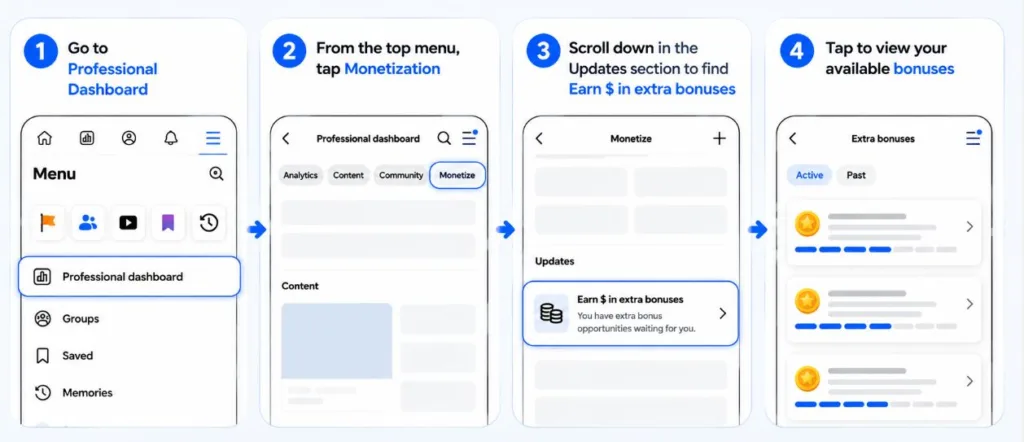
Here’s the complete navigation path to reach Facebook’s Extra Bonus section on the mobile app. This is the method that actually works.
Step 1: Open the Facebook Menu
Start by opening the Facebook app on your phone. At the bottom of your screen, tap the three-line menu icon (sometimes called the hamburger menu). This opens the main Menu page.
On this screen, you’ll see your linked Pages and profiles listed near the top, along with a row of shortcuts beneath them. You’ll also see a list of quick-access options including Professional dashboard, Groups, Saved, Memories, Meta AI, and more further down the page.
Tap on “Professional dashboard.”
This is the first step that trips a lot of people up — many creators go to their page settings or try searching for “Bonus” directly, which doesn’t work. The entry point you need is specifically Professional dashboard, accessible from this Menu screen.
Step 2: Navigate to the Monetize Tab
Once you’re inside the Professional Dashboard, you’ll see a row of tabs running across the top of the screen. These tabs include Analytics, Content, Community, Monetize, Ad Center, and possibly others depending on your account setup.
Tap the “Monetize” tab.
Don’t get distracted by the Analytics cards or other sections on this screen — you want to go straight to Monetize. This tab is where all of Facebook’s creator earning tools are managed, including Content Monetization, Stars, Subscriptions, and the bonus challenges.
Step 3: Scroll Down to the Updates Section
After tapping the Monetize tab, you’ll land on a page that shows an overview of your approximate earnings for the current period, along with any recent payouts. Scroll past this earnings summary section.
As you scroll down, you’ll reach a section labeled “Updates.” This section contains a horizontal row of notification-style cards. Keep your eye out for a card that reads something like:
“Earn $ in extra bonuses”
The card will also mention how many bonus opportunities are currently waiting for you and may include a note that they expire soon. This is your entry point into Facebook’s bonus challenge system.
Tap that card.
Tip: The Updates section can sometimes show other cards alongside the bonus one — things like growth tips or content strategy suggestions. Make sure you’re tapping specifically the card that mentions “extra bonuses” rather than any of the other update cards.
Step 4: You’re Now Inside the Extra Bonus Page
After tapping the bonus card, you’ll arrive at a dedicated page titled “Extra bonus.”
At the top of this page, you’ll see two tabs: Active and Past.
- The Active tab shows all the bonus challenges that are currently available for you to complete.
- The Past tab shows challenges you’ve already finished or that have expired.
Each active bonus challenge on this page shows you:
- The bonus amount you can earn (for example, $1, $10, or $50)
- What you need to do to qualify (specific content types, view thresholds, or posting requirements)
- A progress bar showing how far along you are
- The number of days remaining before the challenge expires
- Action buttons such as View details, Create, or Learn more
Understanding the Types of Bonus Challenges on Facebook
Now that you know where to find the Extra Bonus section, it helps to understand what kinds of challenges you might encounter once you’re there. Facebook rotates bonus opportunities regularly, and the specific challenges available to you will depend on your account’s content history and eligibility.
Based on what’s available in the program right now, here are some examples of the kinds of bonus challenges Facebook assigns:
Reel Creation Challenges
One common challenge type requires you to publish a set number of Reels within the challenge period, with each Reel meeting a minimum length requirement (typically 30 seconds or longer). To qualify, your Reels also need to reach a certain number of qualified views — meaning views that meet Facebook’s engagement threshold. Your progress is tracked automatically, and you can check how many qualifying Reels you’ve completed directly on the challenge card.
Lifestyle Post Challenges
Another type of bonus challenge asks you to create a set number of lifestyle posts within a limited time window (often 7 days). Each post needs to reach a specific qualified view count — for example, 4,500 qualified views — to count toward the challenge. If a post doesn’t hit the threshold, it won’t contribute to your progress even if it gets published on time.
Cross-Posting or Group Sharing Challenges
Some bonus challenges involve sharing or cross-posting your content to suggested Facebook Groups. For this type of challenge, Facebook assigns a target number of posts you need to share across suggested groups. One important thing to know here: if a group admin deletes your post, that post no longer counts toward your challenge progress, so it’s worth keeping an eye on how your shared posts perform.
Important: Each challenge comes with its own expiration date, so you’ll want to check the days remaining counter and plan your content accordingly. Completed challenges are moved to the Past tab, where you can review them and confirm your earned bonuses.
Why You Might Not See the Bonus Section at All
If you’ve followed all the steps above and still don’t see the Extra Bonus card inside the Updates section, there are a few possible reasons.
- You may not be enrolled in Facebook Content Monetization yet. Facebook’s unified monetization program is currently rolling out on an invite basis. If your account hasn’t been approved yet, the bonus section may not be visible to you. You can check your eligibility status directly inside the Monetize tab of your Professional Dashboard.
- Your account may not currently have any active bonus opportunities. Even for eligible creators, bonus challenges aren’t always available at all times. Facebook assigns them periodically, and there may be gaps between active challenge periods. If you don’t see the card right now, check back after a few days.
- You may be in an unsupported region. Facebook Content Monetization is available in many countries, but the rollout is still ongoing in some regions. India, for example, is now part of the program, but bonus availability can vary by location.
- The Updates section may be showing other cards first. Try swiping horizontally through the cards in the Updates section. The bonus card may be positioned behind another update rather than appearing first in the row.
The Full Navigation Path at a Glance
To quickly recap, here’s the complete route to find Facebook’s Extra Bonus section:
Menu > Professional Dashboard > Monetize tab > Scroll to Updates > Tap the “Earn $ in extra bonuses” card > View your active bonus challenges
That’s it. Six steps, and you’re in.
A Few Things Worth Knowing Before You Start Chasing Bonuses
Now that you know where to find the bonus section, here are a few practical things that will save you some frustration as you work through the challenges.
- Qualified views matter more than raw views. Not every view counts toward your bonus progress. Facebook uses a metric called qualified views, which accounts for views that meet a minimum engagement or watch-time threshold. Getting a lot of views on a post doesn’t automatically mean those views will all count toward your challenge requirements.
- Post timing matters for time-limited challenges. If a challenge gives you 7 days to create a set number of posts, make sure you’re spreading your content out strategically rather than rushing everything in on the last day. Consistent posting over the full window generally gives your posts more time to accumulate qualified views.
- Deleting posts can hurt your progress. If you delete a post that was contributing to a challenge, Facebook may remove it from your progress count. The same applies to posts shared to groups — if a group admin removes your post, it no longer qualifies.
- Check the Extra Bonus page regularly. Facebook adds new challenges periodically, and some challenges have very short windows — as few as 3 to 4 days. If you only check the page once a week, you may miss time-sensitive opportunities entirely.
- The Past tab is useful for tracking your history. Once a bonus is completed or expires, it moves to the Past tab. This is a good place to review what you’ve earned and look for patterns in the types of challenges Facebook assigns to your account.
Wrapping Up
Finding the Facebook Bonus section is genuinely not as straightforward as it should be, and it’s completely understandable that so many creators end up confused. The feature is tucked inside the Monetize tab of your Professional Dashboard, accessible only through a scrollable Updates card — not through any obvious shortcut or direct link.
Once you know the path (Menu → Professional Dashboard → Monetize → Updates → Extra bonuses), getting there takes less than a minute. And the challenges themselves can be a meaningful way to earn additional income on top of your regular content monetization, especially if you’re already posting consistently.
If you ran into a different issue finding your bonus section, or if the steps above worked out for you, drop a comment below. It helps to know what’s working across different account types and regions — and if you’re still stuck, feel free to ask a question and I’ll do my best to help.
Check out our latest posts on the Blog Page!